![3_Transparent_Image_footer.png]](https://novineer.com/hs-fs/hubfs/3_Transparent_Image_footer.png?height=32&name=3_Transparent_Image_footer.png)
The two ways to choose which nodes receive a load or restraint, when each is the better choice, and which one wins when both are filled in.
Apply to: Face or Shape
Every load (and restraint) is applied to either a Face or a Shape. Finite-element nodes from the surface mesh associated with the selected faces, or falling within the shape’s volume, are selected for the corresponding load or restraint.
- Face: Ctrl+click faces on the model; chips showing the face id list the selection. Clicking a face a second time removes it from the list. Optionally, use Select tangent to expand the selection to all faces tangent to the current selection, or Clear to empty the list.
- Shape: a Cube, Cylinder, or Sphere volume; translate (move) and rotate it with the interactive controls.
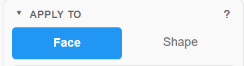
The Apply to selector of a load or restraint.
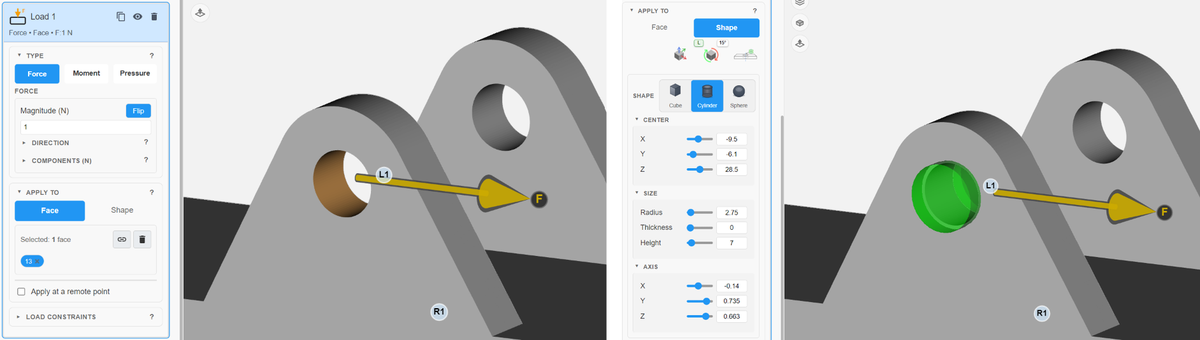
Left: Face selection, the bore of the bracket is selected. Right: Shape selection, a green cylinder captures the surface nodes inside it.
Local vs Global and angle snap
The Aim button turns on RGB rings in the viewport so you can drag the load direction, moment axis, or slide free direction when the available tray X/Y/Z snaps, Normal, or Axis are not enough. Click Aim again to turn it off.
Next to Aim (and next to Shape Rotate) are two small badges:
| Badge | Values | What it controls |
|---|---|---|
| G / L | Global or Local | Which triad (reference frame) the rings and angle snap follow |
| Angle snap | 1° / 5° / 10° / 15° / 30° / Off | Whether dragging snaps near frame axes |
Click each badge to cycle. The choice is remembered for the session (and across sessions).
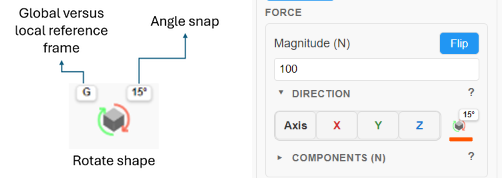
Left: the G/L and angle-snap badges next to the Aim control. Right: the badges in the Direction section of a Force.
Rotating shapes
Use Shape mode when you want a Cube, Cylinder, or Sphere volume to pick nodes. Place it on the model with a Ctrl+click, then use the interactive controls to position and orient it precisely:
| Control | Shortcut | Action |
|---|---|---|
| Move (translate) | Ctrl+T, then Ctrl+drag | Reposition the shape |
| Rotate | Ctrl+R, then Ctrl+drag | Reorient the shape with RGB rings |
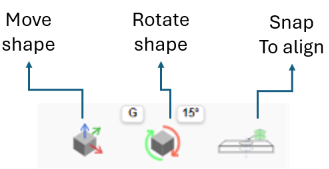
The Move shape, Rotate shape and Snap to align buttons, with the G/L and angle-snap badges.
Use the Rotate shape button to enable the rotation control.
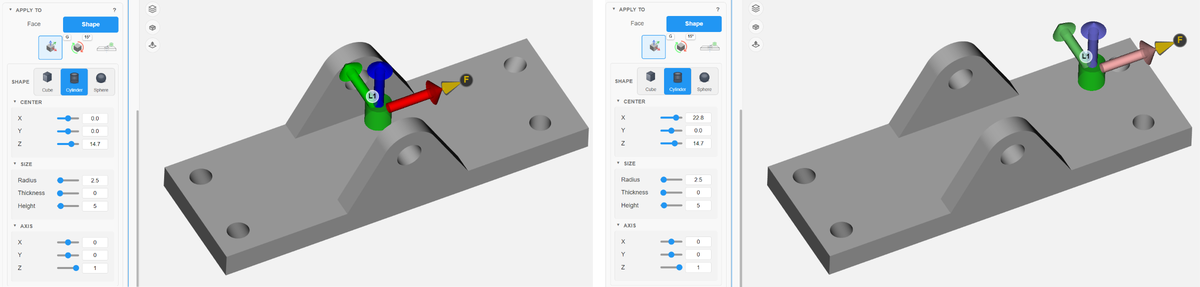
While pressing Ctrl, drag the R, G or B arrows enabled by the Move shape button to move the shape in X, Y or Z, respectively.
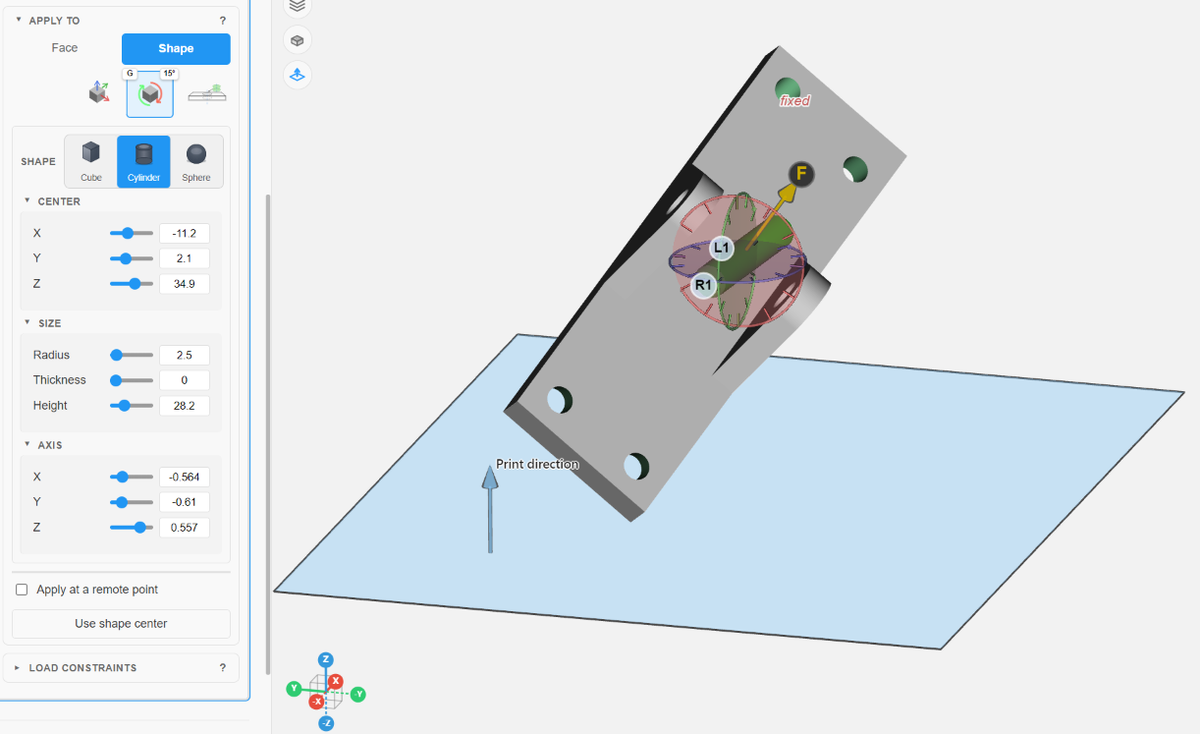
When the badge reads G, the Rotate control is aligned with the tray global directions. Ctrl+drag on a disc to rotate in the Global reference frame.
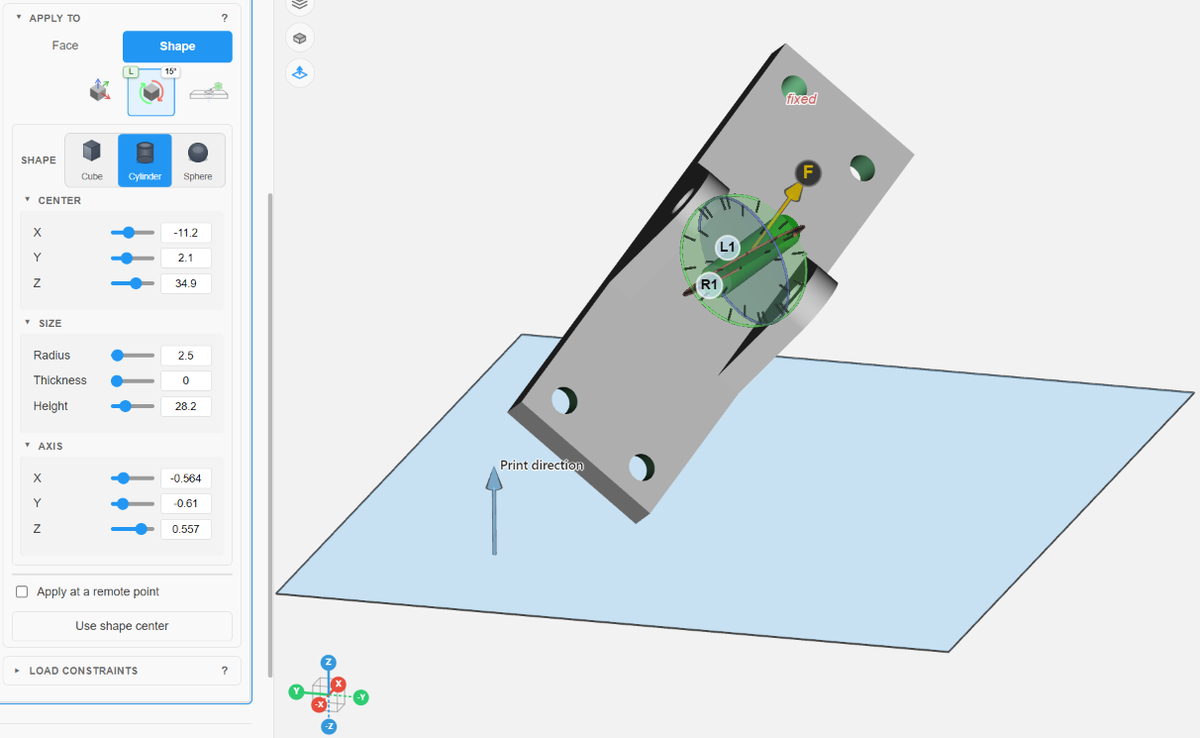
When the badge reads L, the Rotate control is aligned with the cylinder’s local axis.
Snap a shape to a hole or face
For Cylinder and Cube shapes, use Snap to hole or face to snap the shape to the selected geometry:
- Cylinder + hole: snaps to the centerline and sizes to the bore.
- Cylinder + flat face: aims into the face (size unchanged).
- Cube: places on the face or hole centerline (size unchanged).
Steps to snap a shape:
- Click the Snap to hole or face button.
- Ctrl+click a hole, bore, or flat face. Hole: the cylinder snaps onto the hole centerline and sizes to the bore. Flat face: the cylinder aims straight into the face (size unchanged).
- Press Esc to cancel, or click again to place it elsewhere.
After the snap, use Rotate + angle snap for any small remaining offset. You can also edit Center, Size/Radius/Height, and Rotation (RPY) numerically in the shape parameter panel.
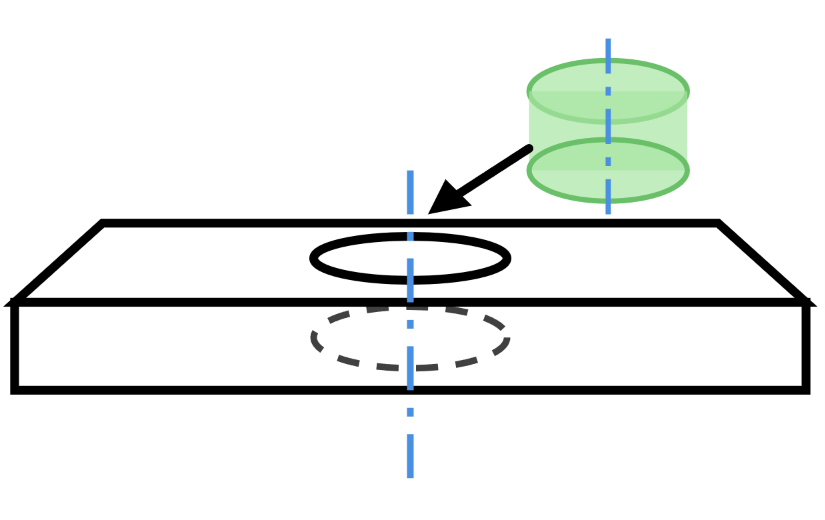
Snapping a cylinder shape to a hole aligns its axis with the hole centerline.
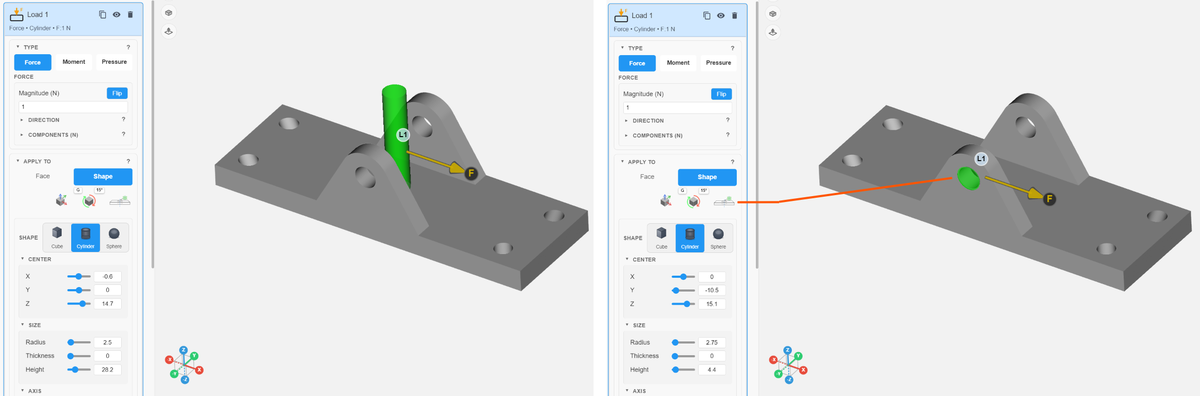
Left: a cylindrical shape region with arbitrary orientation and size. Right: with Snap to hole or face, the cylinder snaps into the selected hole with its axis aligned and its radius and height adjusted to cover the entire hole.
Global (G) vs Local (L)
| Frame | Rings and snap follow | Typical use |
|---|---|---|
| Global (G) | World / tray X, Y, Z | Align a force or free slide to the printer axes; the default for most directional loads |
| Local (L) | Shape or cylindrical-hole local axes when available | Aim along a tilted face normal or tangents, a cylindrical hole axis, or a rotated shape triad |
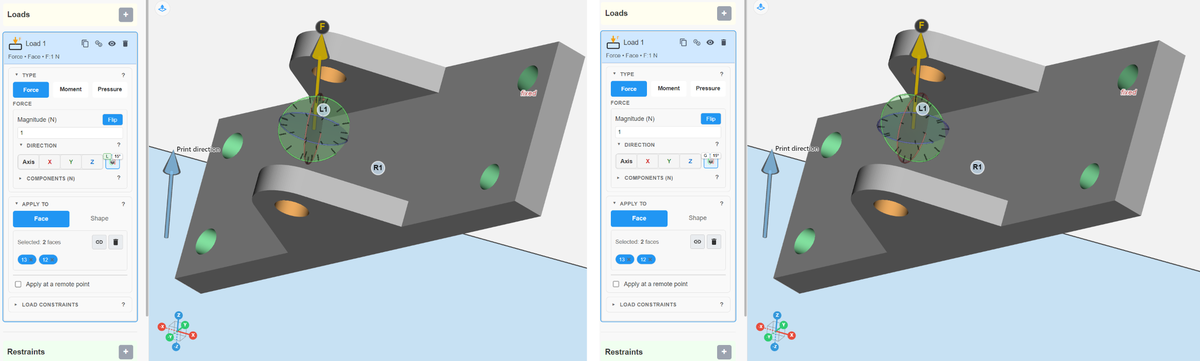
Left: Global frame, the force is aimed along the tray axes. Right: Local frame, the force is aimed along the local axis of the selection.
If the current selection has no local DOF basis, Local falls back gracefully; prefer planar or cylindrical Face selections or a Shape when you need a clear local triad.
Selecting multiple faces
When a load acts on multiple faces of the CAD model, there are two ways to select the surfaces: one by one, or by tangent selection.
One by one (Ctrl+click on a face)
Keep Ctrl pressed and click anywhere on the desired surface. These selections are additive: the list of selected faces accumulates as you keep clicking. To remove a face from the list, delete its chip from the list or simply Ctrl+click the same face a second time.
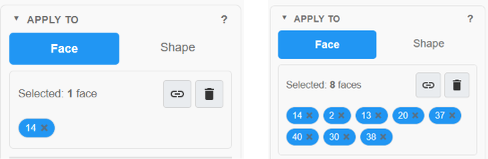
Left: one face selected. Right: eight faces selected one by one; each chip is one face.
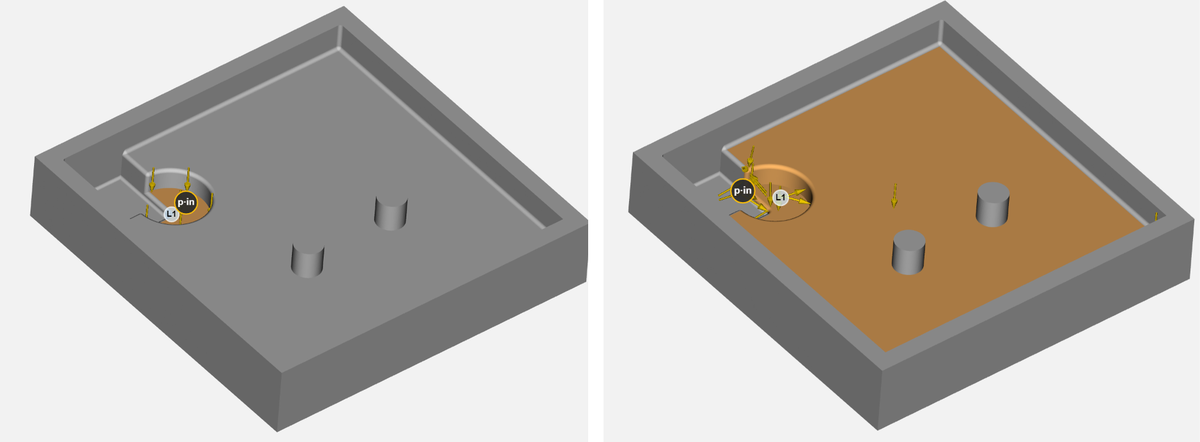
Left: the first face picked. Right: the eight faces of the pocket floor selected one by one.
Multiple faces with Select tangent
Neighboring faces that are tangent at their connecting edges can be selected together by picking one face and then clicking the Select tangent button. The selection expands to faces that meet smoothly and stops at sharp edges and corners.
The Select tangent button.
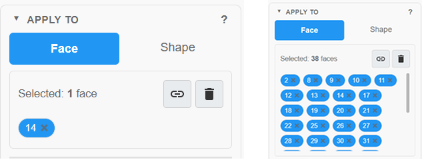
Left: one face selected. Right: 38 faces after Select tangent.
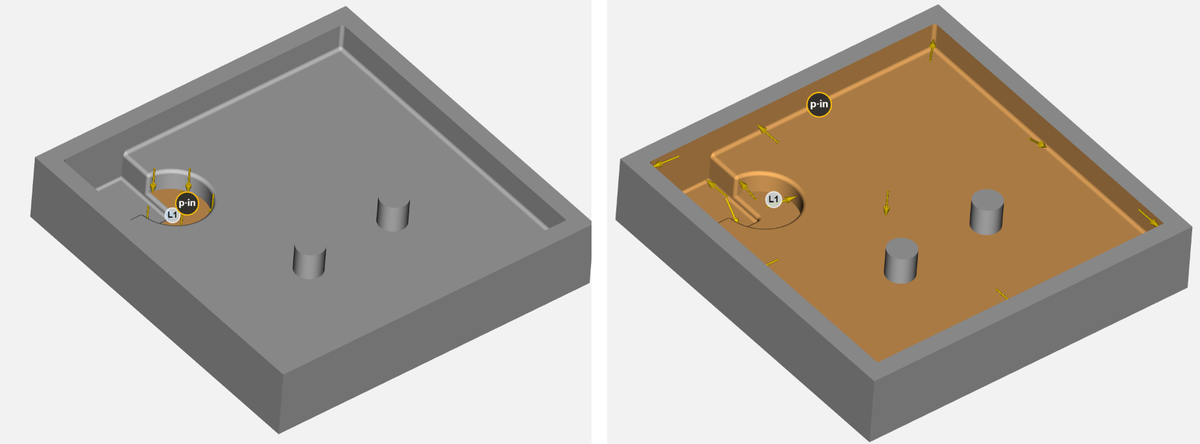
Left: the first face is picked. Right: the faces tangent to it are selected automatically with Select tangent.
See also Applying Force, Moment, or Pressure and Restraint types: Fixed, Pinned, Roller, Slide or Custom.