![3_Transparent_Image_footer.png]](https://novineer.com/hs-fs/hubfs/3_Transparent_Image_footer.png?height=32&name=3_Transparent_Image_footer.png)
Installation takes two steps: run the small Launcher installer while GrabCAD Print is closed, then restart GrabCAD Print Pro and click Install NoviPath to download the full plugin. Pick the same scope (all users or this user) in both installers. Windows: GrabCAD Print Pro access is required.
Platform: Windows. Requires: GrabCAD Print Pro. Time: about 10 minutes. Admin rights: recommended.
Before you begin
- Sign in to GrabCAD Print with an account that has Pro features access. This requirement may relax in future releases, but it is required today.
- Install the Launcher MSI first. The full plugin is installed from inside GrabCAD Print, and it will not appear until the Launcher is in place.
Step 1: Download and install the Launcher
The Launcher is a small gateway installer that lets you download the full NoviPath plugin from within GrabCAD Print. This step goes away in upcoming GrabCAD releases as the integration gets tighter.
1.1 Close GrabCAD Print before you start
The installer cannot register the plugin folder while the application is running.
1.2 Download the Launcher
Go to downloads.novineer.com/download-launcher. The file saves as NoviPath-Plugin-1.0.xxx-Launcher.msi.
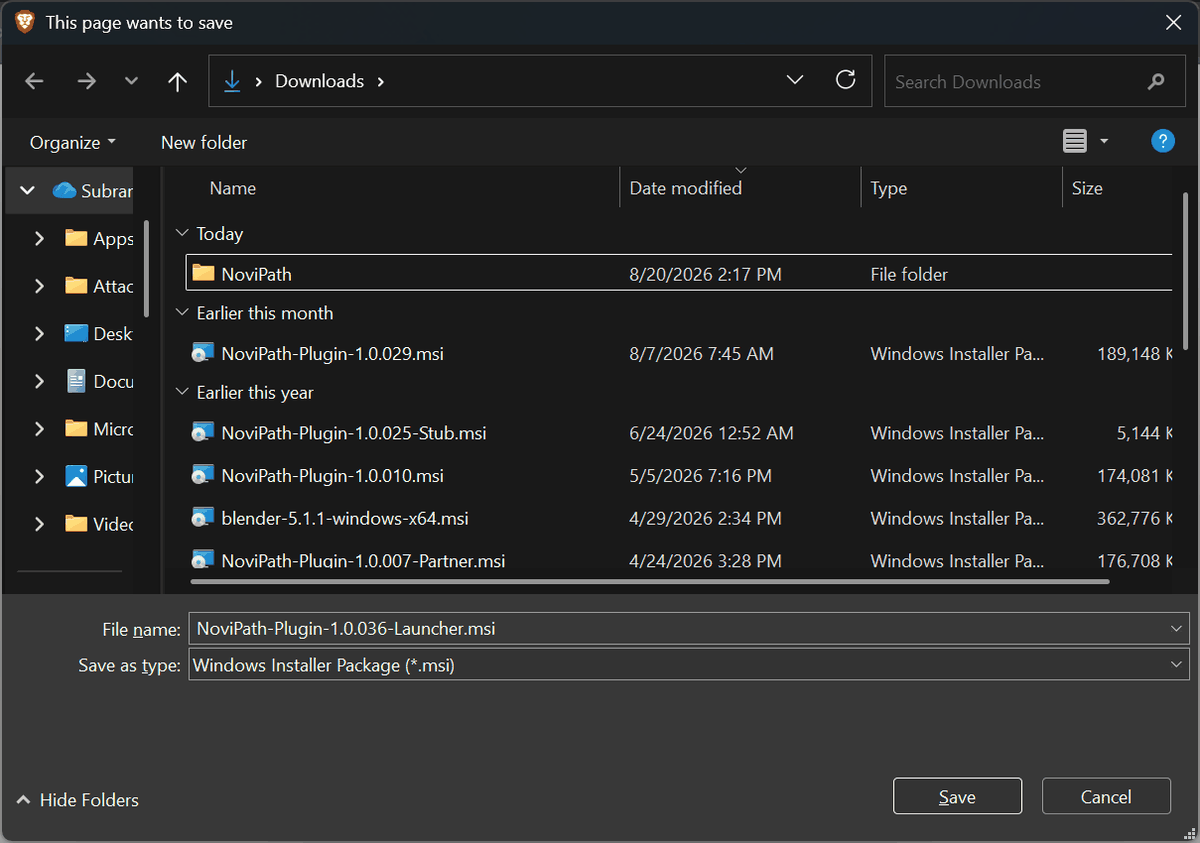
Save the Launcher MSI to your Downloads folder.
1.3 Run the MSI, and verify the publisher if Windows warns you
Windows Defender SmartScreen (or your antivirus) may block an unrecognized app. Click More info and confirm the Publisher reads Novineer Inc., the name on the digital certificate Novineer ships with all its software. Once confirmed, click Run anyway. See IT and security notes if you want to verify the file first.
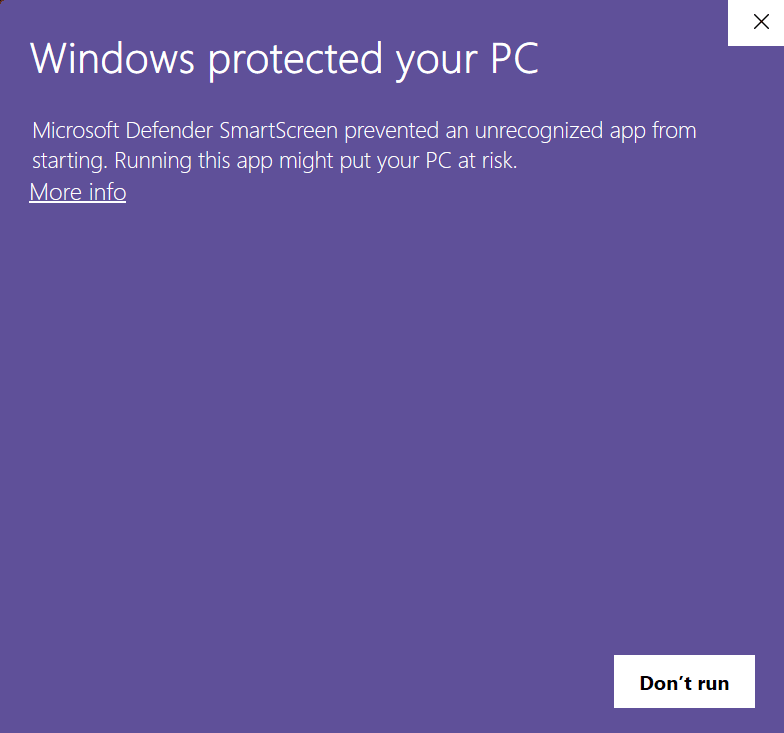
Before: click More info.
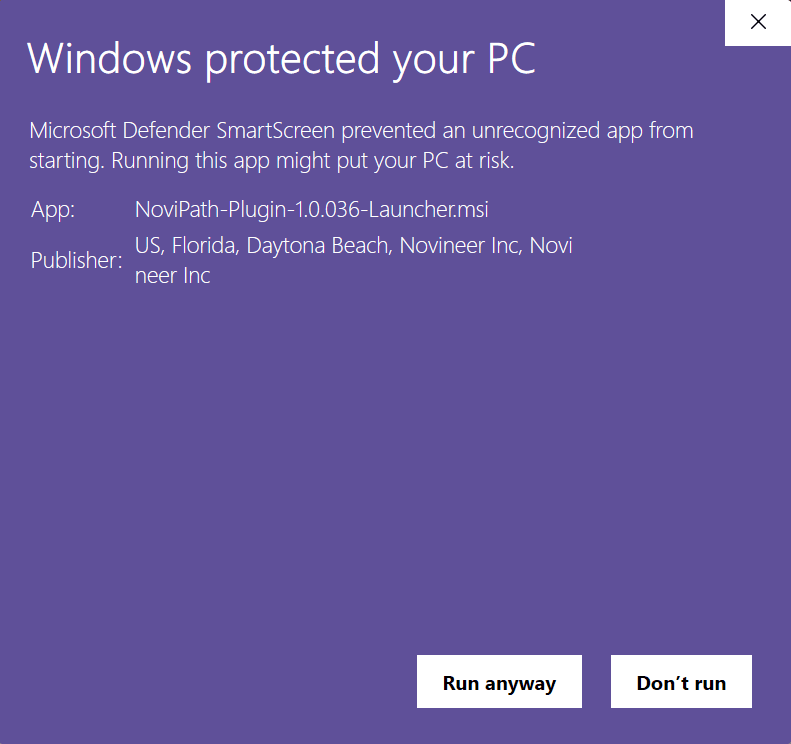
After: the publisher line shows Novineer Inc.
Note: If your company policy requires it, check with your IT team before clicking Run anyway.
1.4 Choose Install for all users, then finish
Installing for all users avoids problems with multiple versions and with plugin features not being discovered properly. Remember which option you pick: you must use the same one in Step 2.
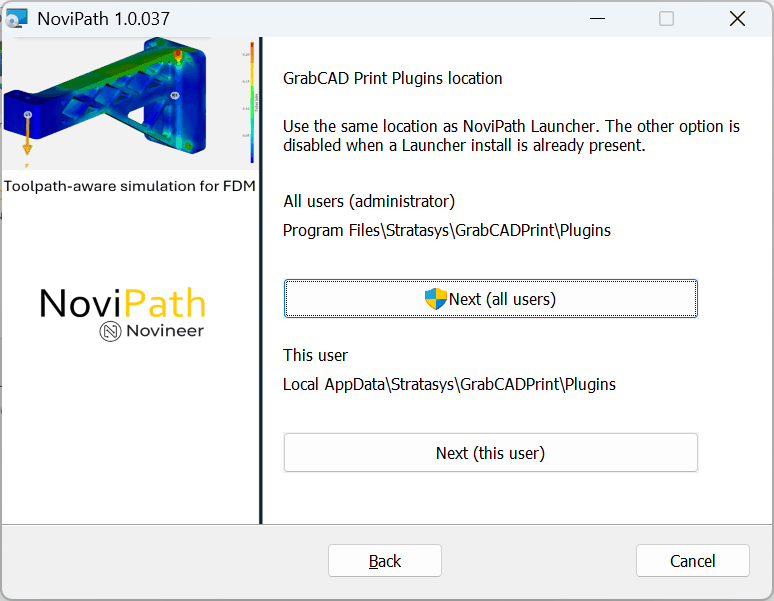
Pick one location only.
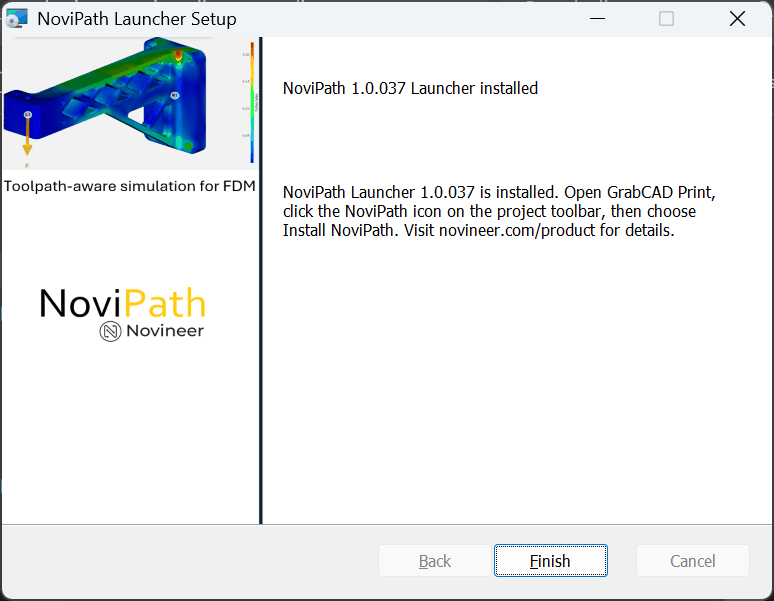
Launcher installed. Click Finish.
Step 2: Install the full NoviPath plugin
The Launcher is the gateway to the full plugin, the piece that actually lets you set up and run simulations inside GrabCAD Print.
2.1 Restart GrabCAD Print Pro
NoviPath now appears in two places: the Plugins menu in the top bar, and the NoviPath icon in the right-hand toolbar.
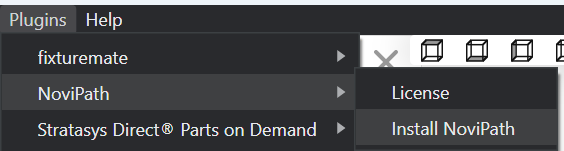
Plugins menu in the top bar.
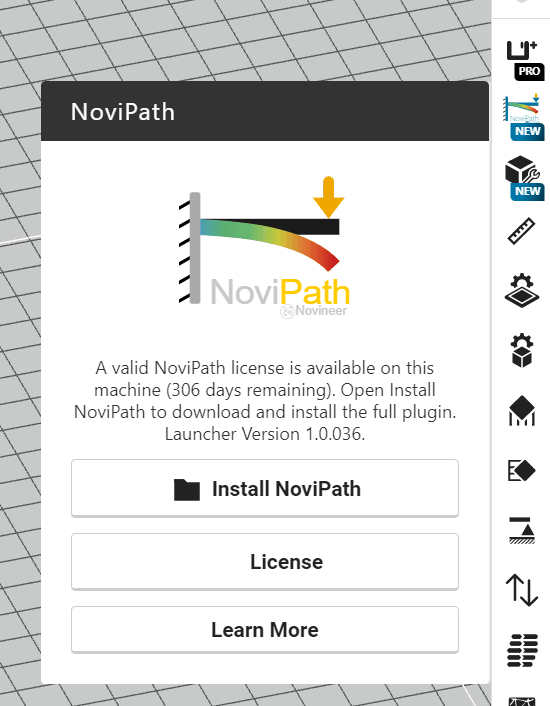
NoviPath panel in the right side menu.
2.2 Click Install NoviPath, then Download and Install
The installation page opens inside GrabCAD Print and fetches the current package.
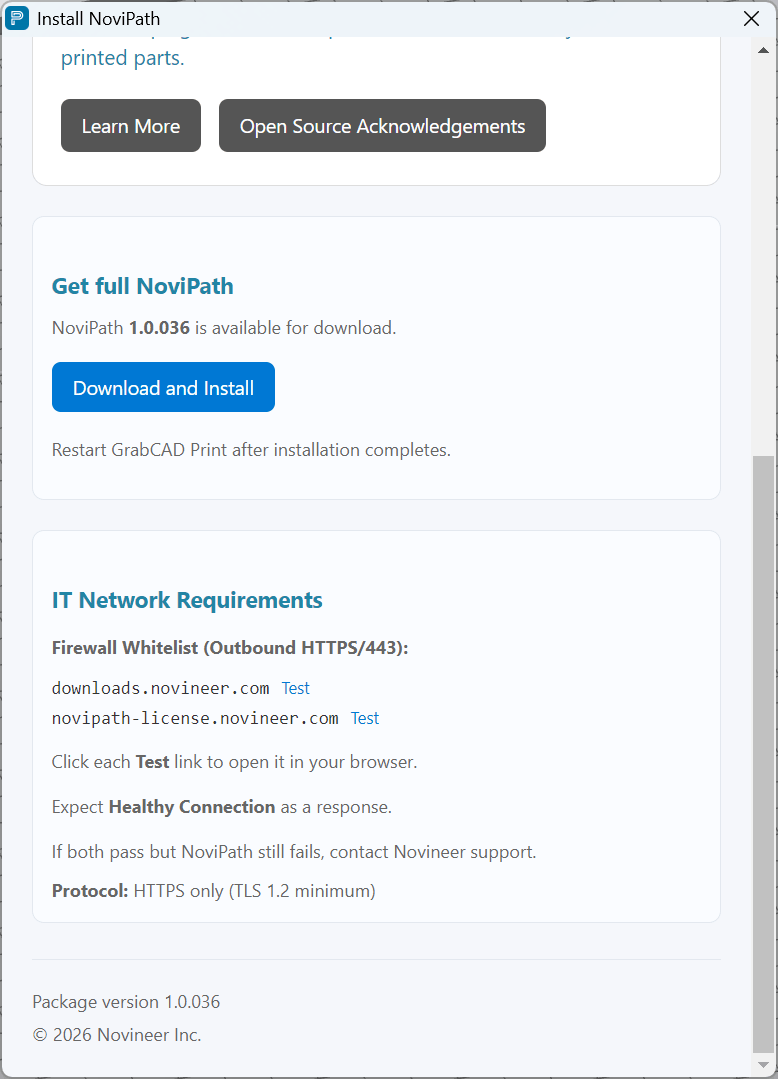
Click Download and Install.
2.3 Run the plugin setup with the same scope you chose in Step 1
Important: If you chose Next (this user) in the Launcher MSI, you must choose this user again here. Mixing scopes leaves the plugin undiscoverable.
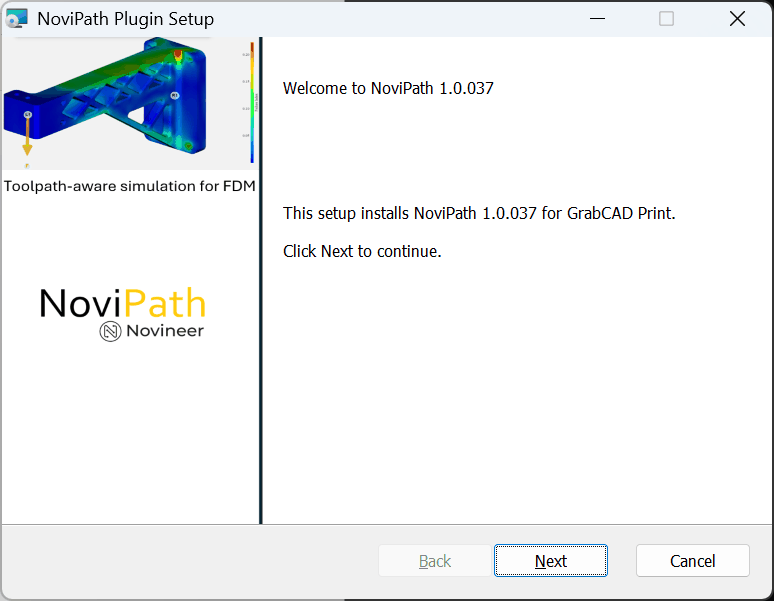
Click Next to continue.
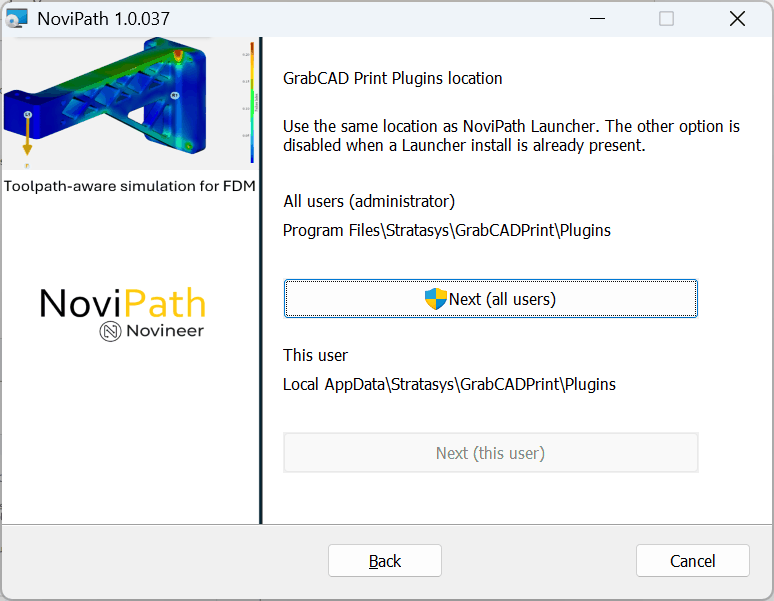
Prefer Next (all users) if you have admin rights.
2.4 Confirm the install, then restart GrabCAD Print once more
When setup finishes you should see the confirmation below. After restarting, the full plugin menu lets you activate a license, create new projects, open existing ones, or browse examples.
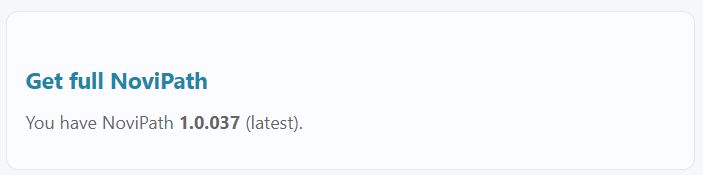
The confirmation names the installed version, for example “You have NoviPath 1.0.037 (latest).”
Next step: Activate your license or 30-day trial key. If NoviPath does not show up after restarting, see NoviPath does not appear in GrabCAD Print after installing.